Practice Mode for Music Practice
Practice difficult sections with compatible visualizations, manual A/B loops, playback speed control, and independent audio/video playback.
Create a visualizationPractice Mode works after a compatible visualization has been generated.
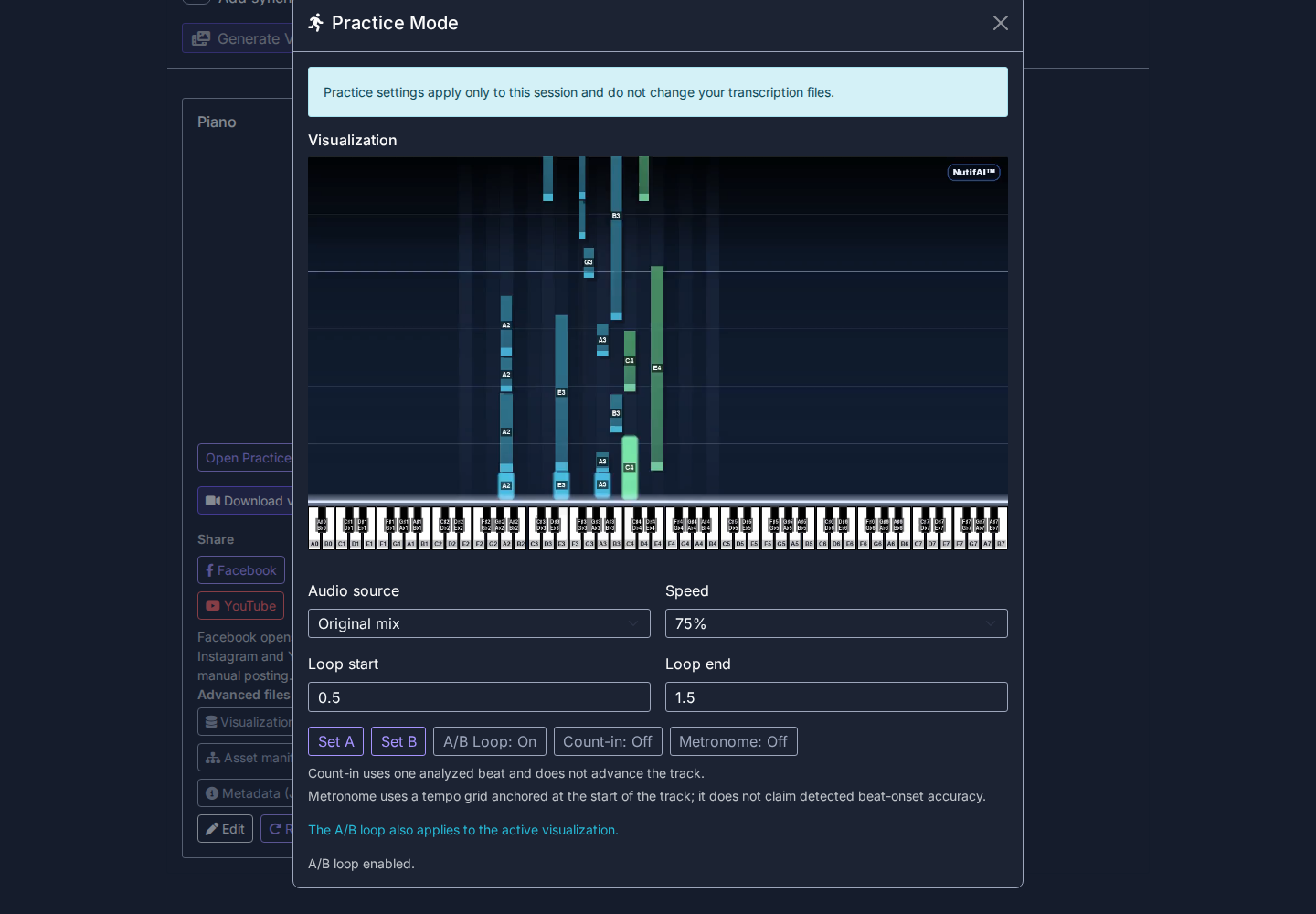
What you can do
- Set the beginning and end of a difficult passage and repeat it continuously with a manual A/B loop.
- Slow down or speed up playback with Practice Mode's playback controls.
- Follow a compatible generated visualization inside the Practice Mode window.
- Play or pause the audio and visualization independently while you practice.
- With compatible sheet-music visualizations, repeat individual measures or contiguous measure ranges.
Works with compatible visualizations
Practice Mode is available after you generate a compatible visualization. Supported families depend on the enabled NutifAI visualizations.
Piano Roll
scrolling fretboard and tab visualization
compatible drum visualizations
page-turn sheet music
cello string visualization
scrolling sheet music
How it works
- 1 Upload or import your music.
- 2 Generate a transcription and compatible visualization.
- 3 Open Practice Mode from the visualization result.
- 4 Set an A/B loop, or select measures when the score supports it.
- 5 Adjust the speed and practice the difficult section.
Frequently Asked Questions
Practice Mode is a focused way to work on difficult passages after NutifAI generates a compatible visualization.
Only compatible visualization videos appear in Practice Mode. Compatibility depends on whether the visualization can stay aligned with the generated audio.
Compatible score visualizations can offer individual-measure and contiguous measure-range loops. Other visualization types use manual A/B loops.